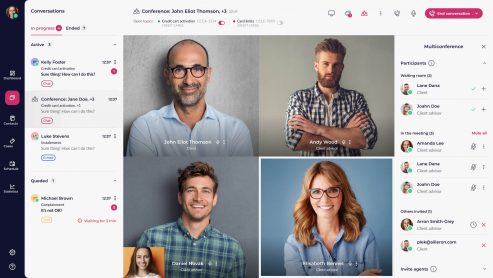


Video calls are a way for a bank customer and a bank employee to have a real-time conversation. This type of connection conveys the feeling of a real face-to-face conversation, adding a human touch to the digital world.
Thanks to real-time conversation, issues can be resolved more quickly, and the customer can easily explain the matter that needs to be addressed.
Furthermore, since both parties can see each other, it’s also possible to carry out certain procedures in which the customer must present a document or the employee must verify that the person presenting it is the same person listed on the document.
Table of Contents
Using Video Connections
Customers start a video call by accessing the chat window in the LiveBank app, available on the bank’s website or in the mobile banking app. When a video call is assigned to an agent, it appears in the LiveBank app, in the “Chat” module; an agent can only have one video call at a time.
The distribution system searches for the appropriate direct agent or an available agent from a competency group, based on the initial parameters. After opening the conversation window, the system automatically assigns the conversation to the appropriate recipient and to the specific initial parameters, such as the case type.
Screensaver
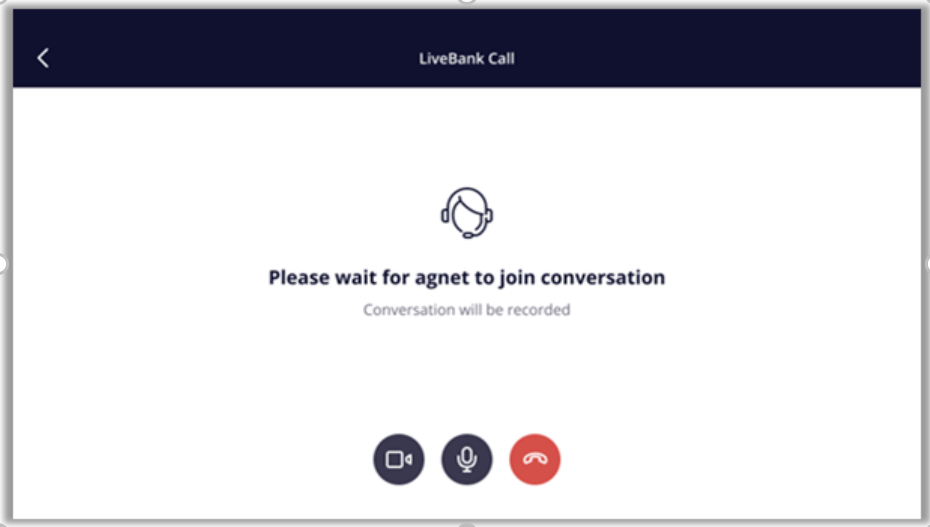
Since a video call is a synchronous call, when the system is assigning an available agent—or when the customer has to wait a moment for the agent to become available—a waiting screen will appear informing the customer that they are waiting for the agent to connect, and which may also display a predefined message indicating that the call will be recorded. The customer can prepare for the conversation by properly configuring their devices.
Receiving video calls
Depending on the system administration settings, there are two configuration options for an agent to receive video calls in the LiveBank app:
Automatic reception. The routing system automatically assigns video calls to an agent who is logged in and has the “available to chat” status; these calls appear in the “Conversation” module, on the “In Progress” tab. The agent sees the assigned call indicator along with the time remaining until the call is automatically answered. The agent can answer the call before the set time expires or wait for that time to elapse while preparing for the call; the call is then automatically answered and begins.
Manual acceptance. The distribution system assigns video calls to an agent who is logged in and has the “available to chat” status; these calls appear in the “Conversation” module, on the “In Progress” tab. The agent sees the assigned conversation indicator.
The agent decides when to answer the call, and the customer waits on the hold screen. When the agent is ready, they answer the call by clicking the “Accept Call” option or “Task” in the second column; the conversation begins at that moment.
Video Connection Features
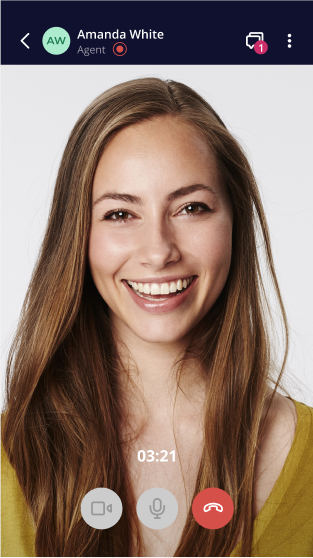
In the case of a web-based client application, the video call opens in a pop-up window as a separate entity; this pop-up window can be moved, minimized, etc. In the mobile app, the video call opens in a new view within the app.
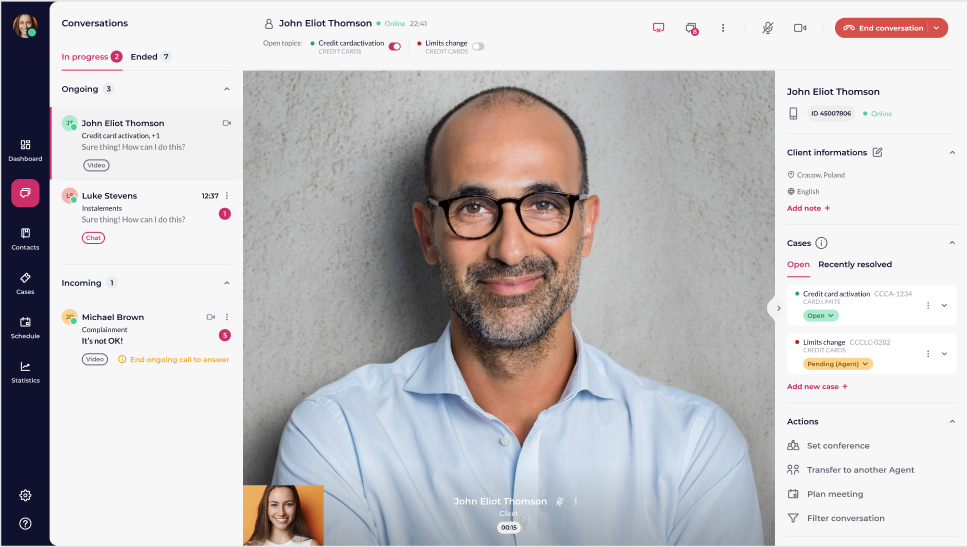
The view, both in the LiveBank app and in the client apps, adapts to the video channel; that is, the app’s main workspace is the other party’s video view, which includes its own preview.
Additional features, such as the chat panel or customer information, can be shown or hidden at any time. During a video call, both parties can use the chat panel to send messages, files, and links, or the agent can use the predefined responses feature and share their screen.
Short video
During the conversation, the agent can move freely between the application’s modules without interrupting the ongoing conversation; the video window is minimized, and the agent can move it around the conversation screen or use it to quickly return to the corresponding conversation module.
Screen Sharing
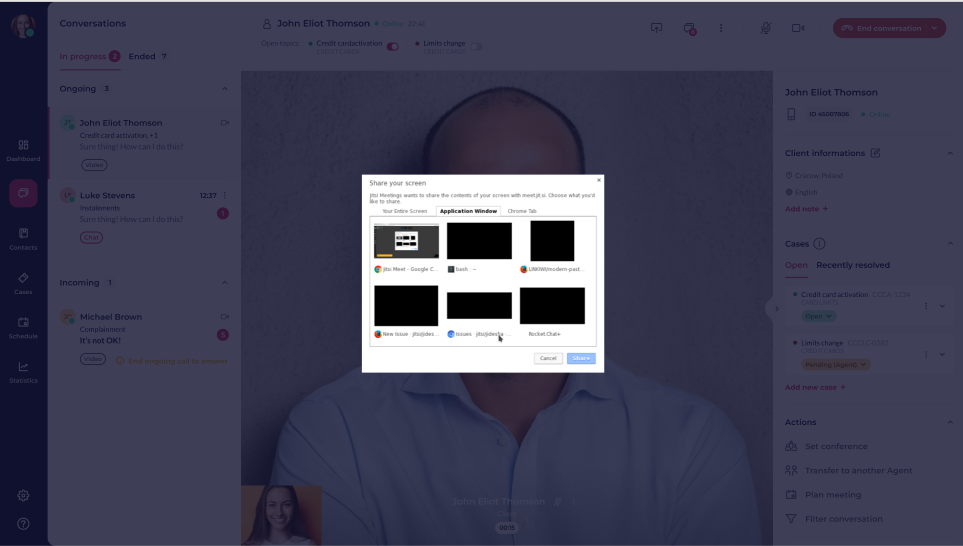
The “Screen Sharing” feature is available during video calls and allows the agent to share their screen with the customer, select the item they want to show the customer, and work on it together.
The screen-sharing option is based on the features offered by the browser; once this option is selected, the agent can choose whether to share the entire screen, a browser tab, or a specific application.
Once the session begins, the image of the selected item is sent to the client’s application in exchange for a preview of the agent’s webcam. The agent continues to view the client’s video and, in exchange for the preview, sees the split screen.
The agent can complete the sharing process using the options in the LiveBank app or through the browser’s built-in features.
End the conversation
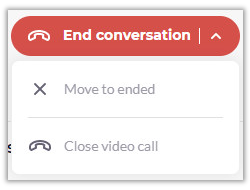
For ongoing video calls, the agent in the “Conversations” module has two options for ending the call: “End Video Call” and “Mark as Ended”:
End the video call: This only ends the video portion of the call; the app interface changes to the chat view. The conversation continues in the chat channel until the agent decides to completely disconnect and checks the “completed” box.
“Mark as ‘Completed’”: This means ending the conversation entirely—that is, changing the conversation’s status to “Completed.” Information about the agent leaving the conversation appears in the client applications, and the task associated with the conversation is moved to the “Completed” tab in the LiveBank application. When the agent ends the conversation, if the customer sends another message, a new conversation begins.
The customer has the option to disconnect from the video call by selecting the “Disconnect” option; after confirmation, the video portion of the call ends for both parties, and the app interface switches to the chat view. The conversation continues in the chat channel until the agent decides to end the call completely and mark the task as “Completed.”