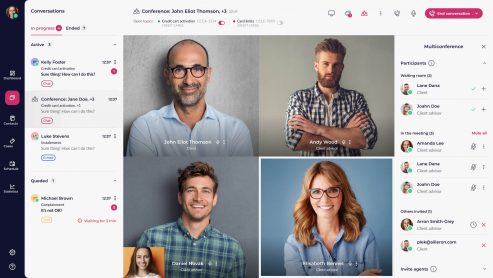


The LiveBank chat area is divided into three sections (columns):
- a list of my conversations divided into two sections (all ongoing conversations and all completed conversations),
- a chat window that displays the selected active conversation and the conversation history of authorized customers,
- a space for managing cases or conversations
Table of Contents
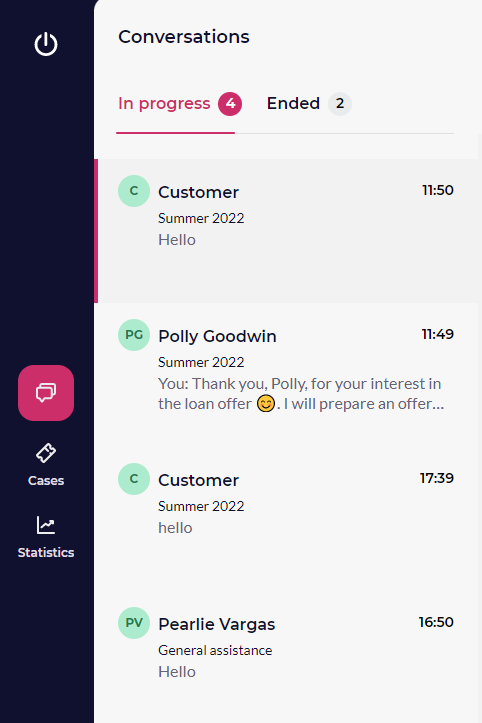
Conversation List (“In Progress” and “Completed” tabs)
The agent can switch between conversations on both tabs by clicking on the customer names or using the arrow keys on the keyboard. The agent can also switch between the “In Progress” and “Completed” tabs by clicking on them with the mouse. The “In Progress” tab contains the conversations the agent is currently working on. The “Completed” tab contains the conversations the agent has decided to mark as completed. The maximum number of conversations in the “Completed” tab is 100.
LiveBank notifies the agent of the number of conversations via the circle next to the corresponding tab.
The timestamp (HH:MM) that appears in each conversation block indicates the time of the last activity in the conversation (this could be a message, a file, or an audio and video connection initiated by either party: the customer or the agent).
In the “Customer” field of the conversation block, the agent can see the topic of the conversation. This information can help the agent understand the context of the request and provide assistance more effectively.
Chat Window
The chat window is the heart of our app; that’s where the most important conversations take place.
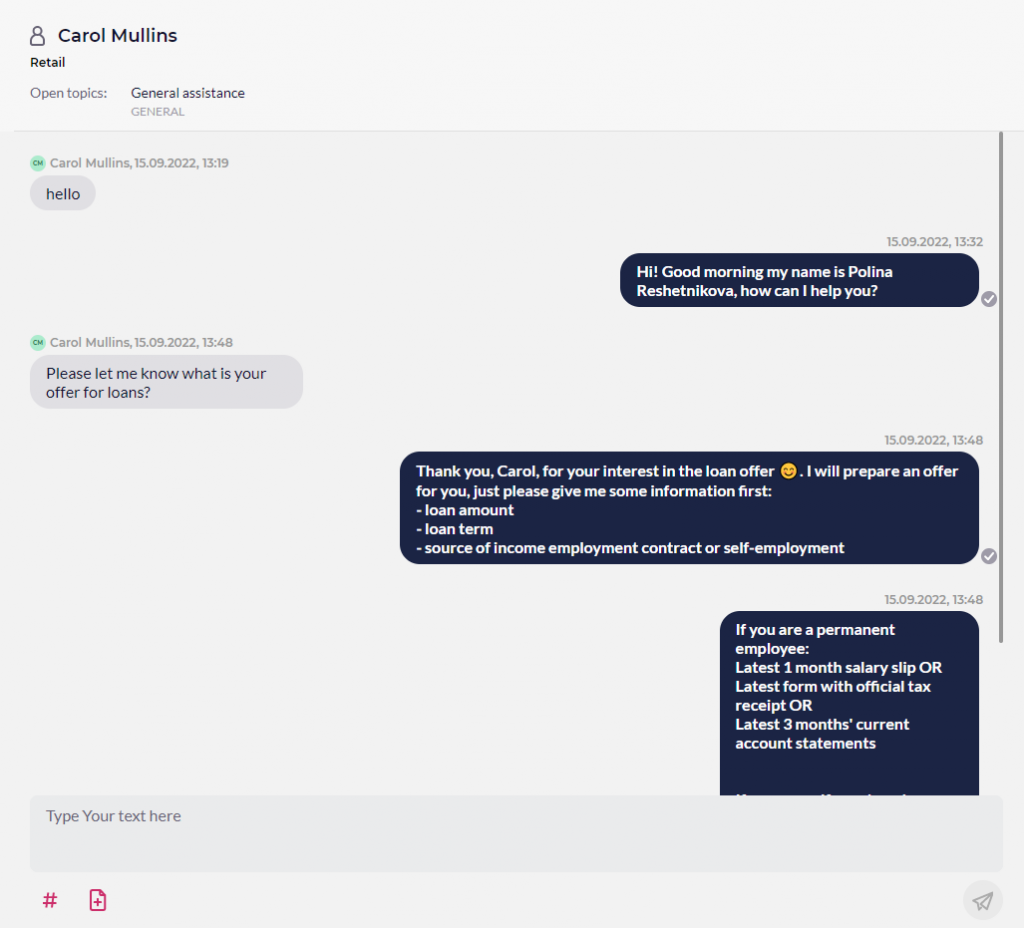
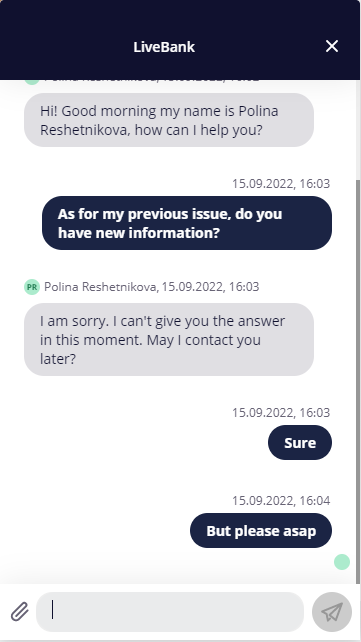
In the chat window, the agent can view the entire conversation history: messages sent during the current conversation and, for authorized customers, messages sent previously.
On the left side, the agent can see the customer’s messages. The agent’s messages appear on the right side of the window (not just those from the specific agent handling the conversation, but all messages sent by other agents at the bank).
At the top of that window, information about the customer and the context of the conversation appears:
- Customer’s first and last name
- Industrial sector (for example, “Retail” in the image below)
- Topic (General Assistance)
- Case Type (General)
To facilitate communication between the customer and the agent via chat, we have added message statuses and timestamps for each message.
Message statuses:
- sent, but not delivered to the server
- sent and delivered to the server

- delivered to the other party
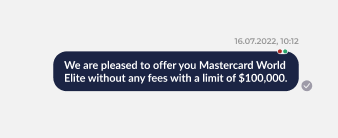
- seen from another perspective
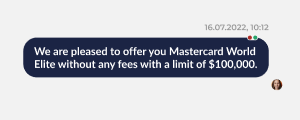
The timestamps next to each message indicate the time the message was sent to the other party.
At the bottom of the chat window is a text area with an input field and a space for collaboration tools. To send a message, the agent types their response and presses Enter or clicks the send button. When Enter is pressed, the message is sent to the customer and appears in the chat history.
Below the input field is a section dedicated to collaboration tools, which includes predefined responses and the option to share files.
Space for case management and the final discussion
End the conversation
In the upper-right corner, there is a button labeled “Mark as Closed,” which is used to mark the conversation open in the chat window as closed. Once the agent has answered all of the customer’s questions or resolved all of their issues, they can click the “Mark as Closed” button and confirm the action in the pop-up window that appears.

When the chat moves to the “Completed” tab for the agent, the customer doesn’t notice any difference. The only change is that the agent’s name disappears from the top bar. The text field remains available to the customer at all times.
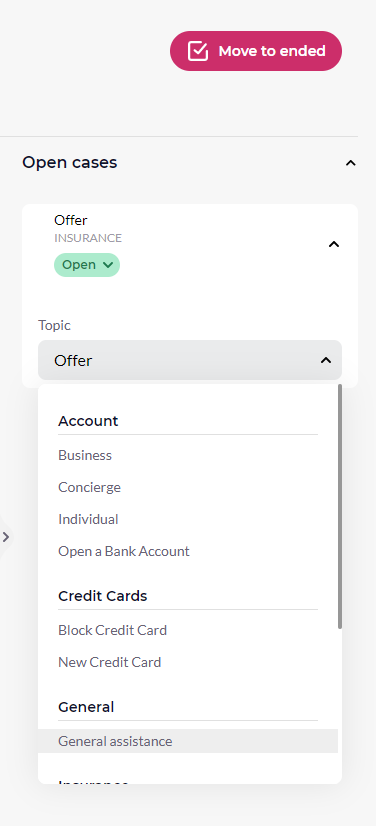
Case Management Area (right column)
However, ending the conversation is only one part of effective communication management in LiveBank. To provide assistance not through isolated conversations, but to help resolve the issue or problem in its entirety, we recommend using LiveBank’s case management tools. Therefore, the agent must decide whether the case associated with this closed conversation has been resolved and assign it the appropriate status. In fact, there are two ways to resolve a case and close the conversation:
- First, set the case status, and then end the conversation (recommended)
- First, close the conversation; then, go to the “Completed” tab, find the conversation, and assign the appropriate status to the case.
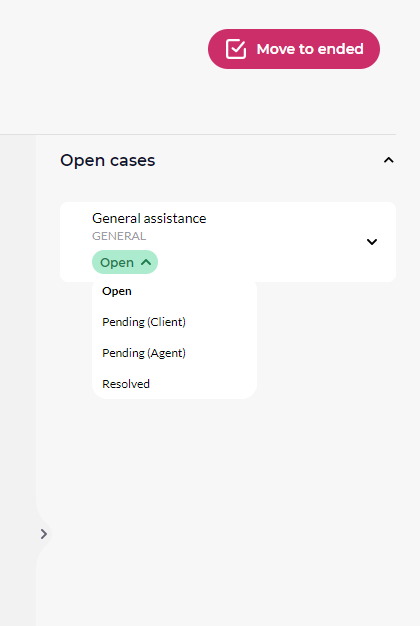
In the right-hand column, the agent can change the case type and topic of an ongoing conversation. This is very useful in situations where the customer has started a conversation with an inappropriate topic and case type, and the agent wants to assign the correct topic to the conversation.